











iPhone Camera: How Your iPhone Decides Which Lens to Use (And Why You Can't Always Control It)
You tap 5x on your iPhone 17 Pro, frame a perfect shot, and hit the shutter. But when you review the photo, it looks soft and grainy. You assumed the dedicated telephoto lens was active. It wasn’t.
Your iPhone doesn’t always use the lens you think it does. It offers an advanced camera system that adjusts itself for the everyday iPhone user; it is beneficial for someone who doesn't desire to manually adjust the camera. However, this same real-time software logic determines which physical lens to activate based on lighting, focus distance, and scene analysis, often without any visible indicator. Even when you select a specific zoom level, the system may override your choice.
While this seamless switching works for casual snapshots, it can be a nightmare for creators. If you are more advanced and need true optical consistency or maximum detail, you may decide to turn off the automatic lens change, as this hidden "auto-pilot" can quietly undermine your work before you even take the shot. To understand how to turn it off, or fully embrace it, it is good to learn how it works
How the iPhone Multi-Lens System Works
The iPhone utilizes three distinct lenses: the 0.5x Ultra Wide, the 1x Main, and a Telephoto lens capable of 5x zoom on the iPhone 17 Pro and 8x on the Pro Max. While the Camera app presents zoom as a smooth, continuous scale from 0.5x to 25x, the hardware actually consists of only those three fixed focal points. When you zoom to any value between them, the software relies on digital cropping, essentially enlarging the image, which can lead to a softer, blurrier result compared to a true optical shot.
3 Reasons Why iPhone Overrides Your Lens Selection
There are three main reasons why your iPhone may switch lens on you, even when it shows it is still on the one you selected:
1. Low Light Conditions: The telephoto sensor and aperture are both smaller than the main lens, so it can't capture as much light. In dim environments, the iPhone will switch to the Main lens while applying a digital crop to achieve the zoom chosen.
2. Minimum Focus Distance: Each Lens has a minimum focus distance, with telephoto lenses requiring 3–5 feet (90–150 cm) for sharp images. If a subject is too close, the system automatically switches to the Main lens for better focus.
3. Scene Analysis: Even if you pick the telephoto lens, your iPhone's "brain" might decide the main lens is simply better for that specific shot. If the main lens can capture better colors, handle moving objects more clearly, or balance bright and dark spots more effectively, the phone will secretly use it and just "zoom in" digitally to give you the framing you asked for.
1. Low Light Conditions: The telephoto sensor and aperture are both smaller than the main lens, so it can't capture as much light. In dim environments, the iPhone will switch to the Main lens while applying a digital crop to achieve the zoom chosen.
2. Minimum Focus Distance: Each Lens has a minimum focus distance, with telephoto lenses requiring 3–5 feet (90–150 cm) for sharp images. If a subject is too close, the system automatically switches to the Main lens for better focus.
3. Scene Analysis: Even if you pick the telephoto lens, your iPhone's "brain" might decide the main lens is simply better for that specific shot. If the main lens can capture better colors, handle moving objects more clearly, or balance bright and dark spots more effectively, the phone will secretly use it and just "zoom in" digitally to give you the framing you asked for.
Why This Matters: The Quality Trade-off
When these overrides happen, your iPhone performs a "digital crop" rather than using the actual telephoto glass. If the phone chooses the Main lens (1x) and crops it to a 5x view, you aren't getting the high-resolution detail of the 5x lens; you are getting a 500% digital enlargement of the main sensor.
This is why your photos can end up looking like a "watercolor painting" or full of grain, even when the screen says "5x." To get the sharpest possible image, you should try to stick exactly to the 1x or 5x (or 8x on Pro Max) markers and ensure you have enough light to keep the "true" lens active.
This is why your photos can end up looking like a "watercolor painting" or full of grain, even when the screen says "5x." To get the sharpest possible image, you should try to stick exactly to the 1x or 5x (or 8x on Pro Max) markers and ensure you have enough light to keep the "true" lens active.
How to Take Back Control
If you want to stop the "hidden auto-pilot" from making these creative decisions during your shoot, here are the most effective ways to reclaim your manual authority:
- Lock the Lens for Video: To prevent that distracting "jump" or flicker between lenses while recording, go to Settings > Camera > Record Video and toggle on Lock Camera. This forces the phone to stay on the lens you started with, regardless of changes in light or distance.
- Force Manual Selection with Pro Apps: The native Camera app is designed to prioritize a "bright" image over your specific lens choice. If you need to force the 5x or 8x lens to stay active for artistic reasons, professional apps like Blackmagic Cam allow for true Manual Lens Selection. These apps tell the software to stay on the lens you picked, no matter what the "brain" thinks is best.
Gear to Elevate Your iPhone Camera Lenses
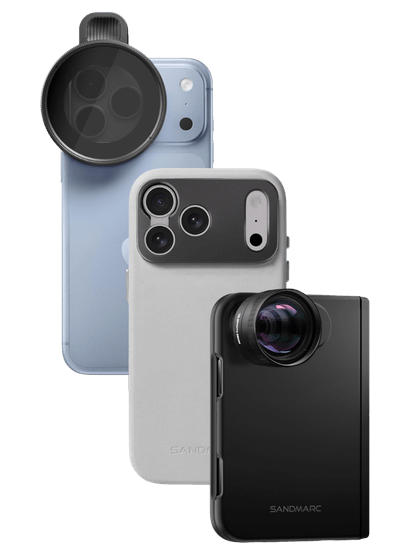
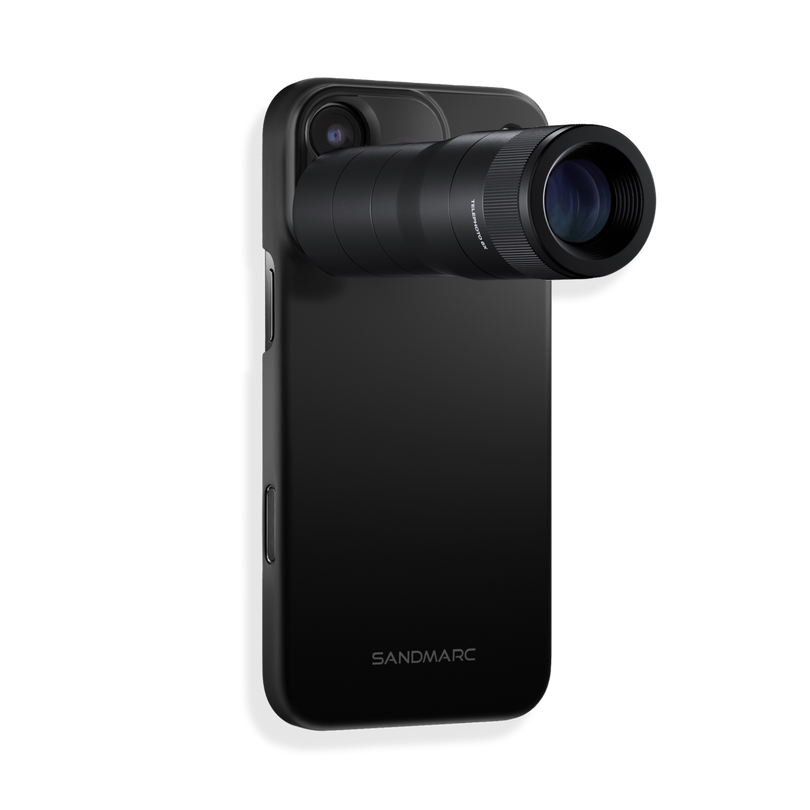
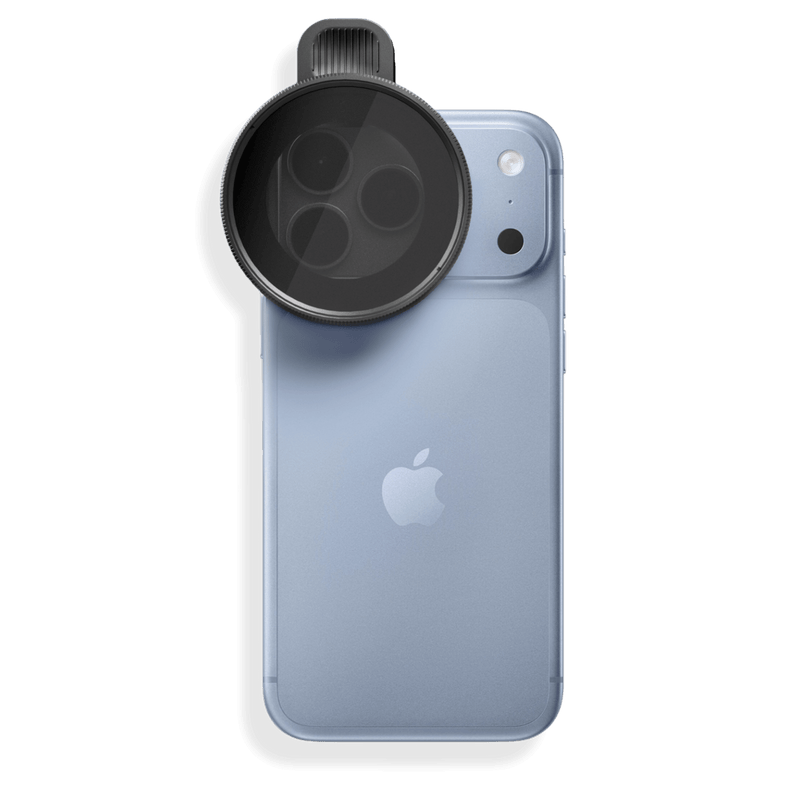
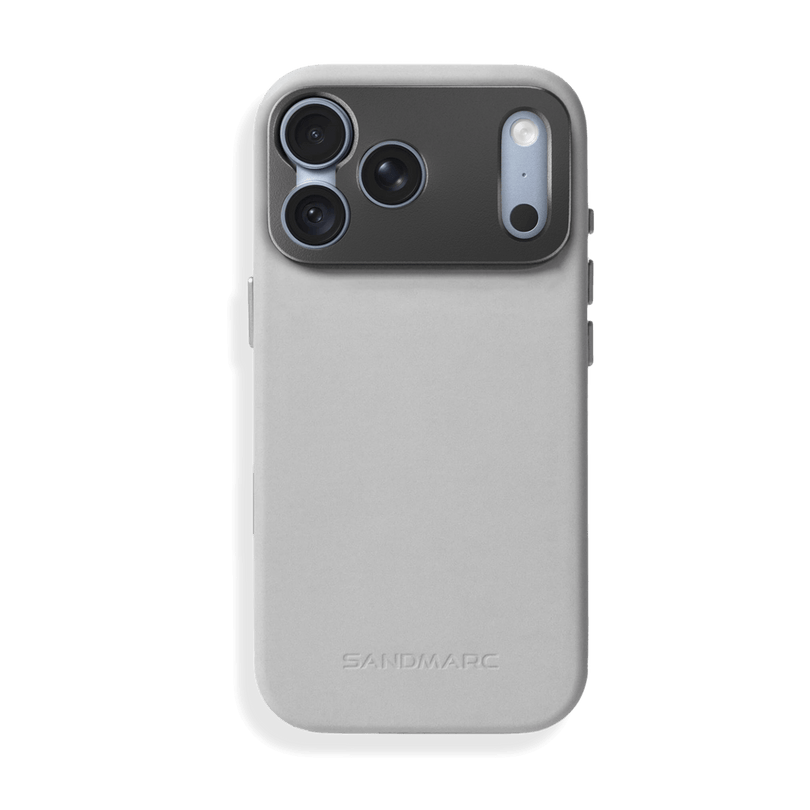
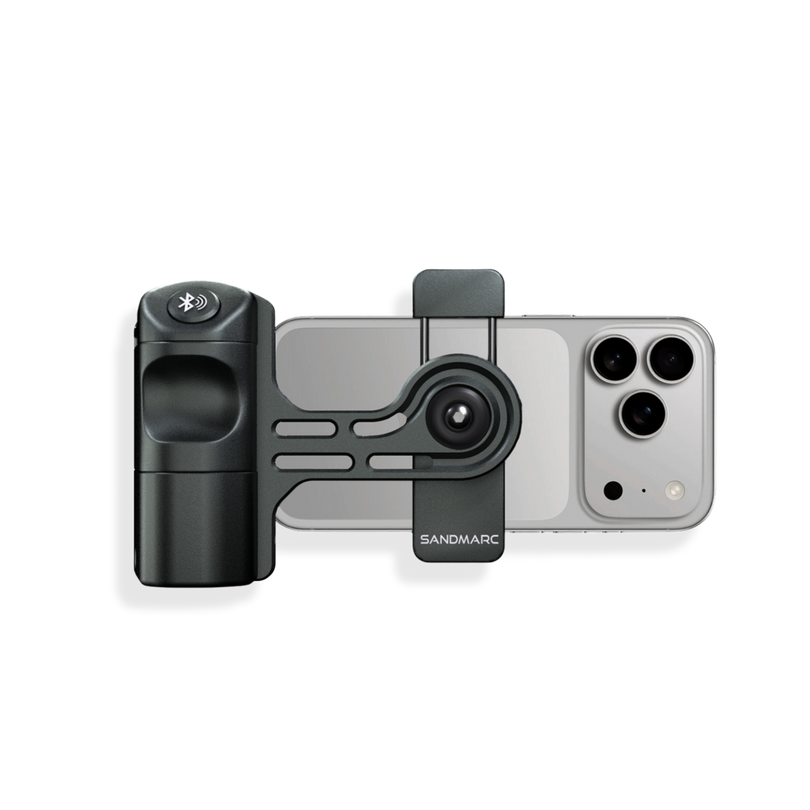
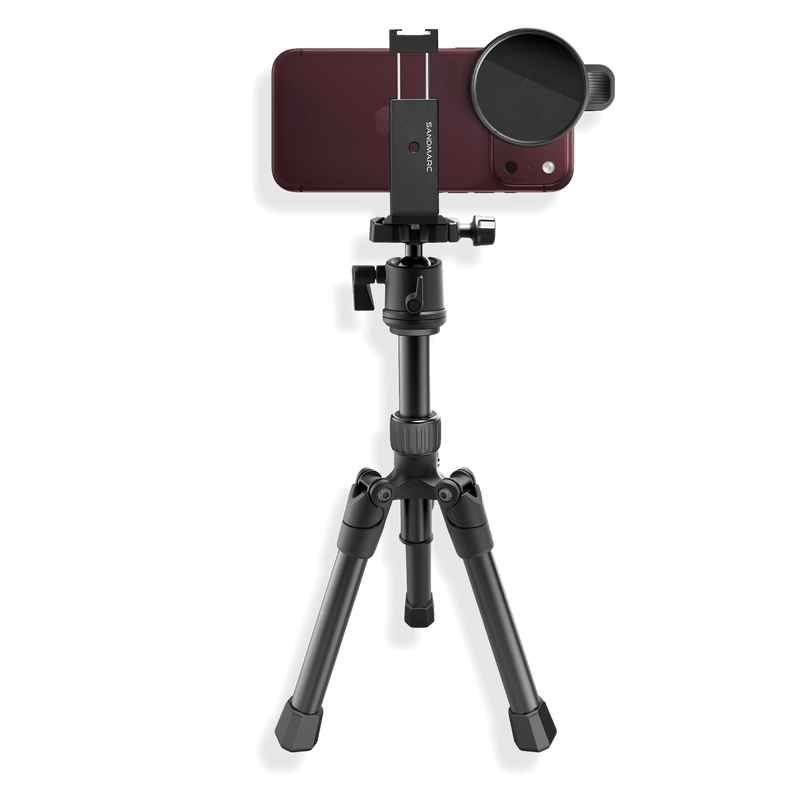
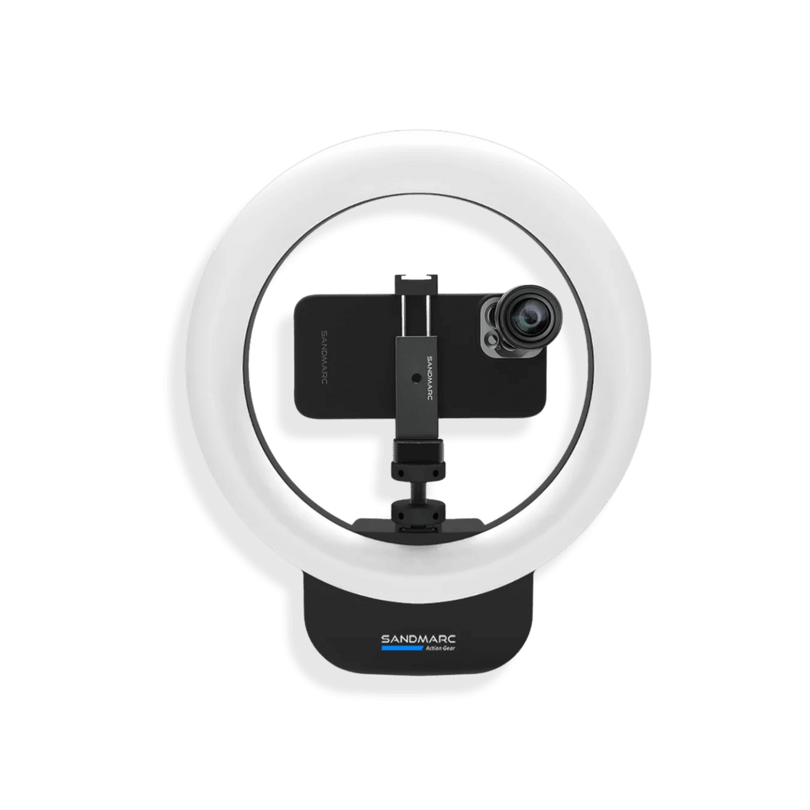
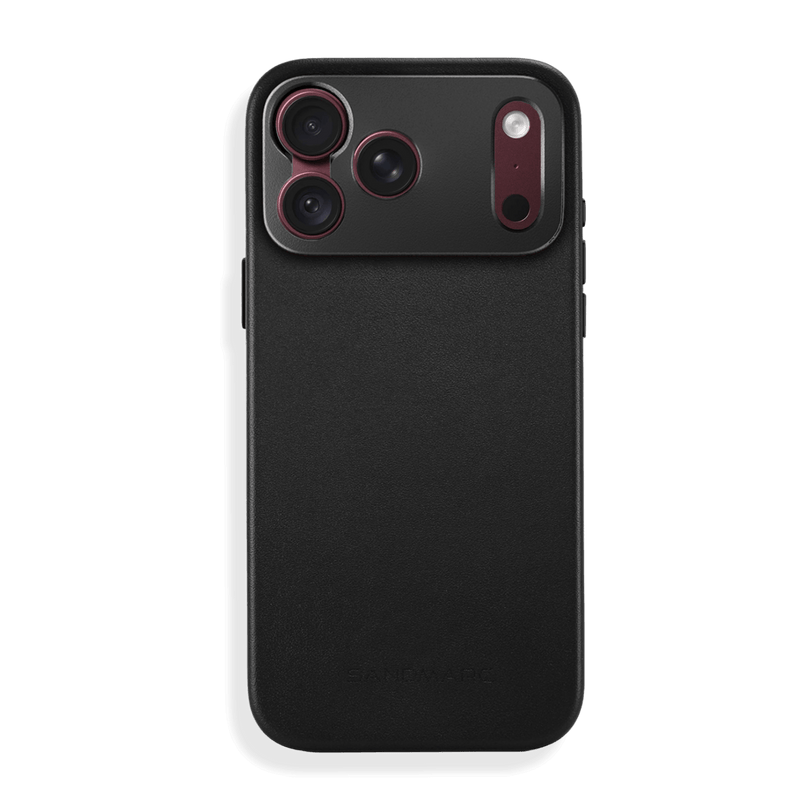
Whether you are looking to capture a true optical macro or an extended telephoto shot, SANDMARC lenses are the ideal choice for your iPhone. If you want to stop the software from deciding for you and truly elevate your mobile setup, attaching high-quality external lens is the best way to bring your photography and filmmaking to the next level.
Author's Bio
Born on the California coast, SANDMARC designs gear for those who live life in motion—travelers, photographers, and filmmakers. Every SANDMARC product is thoughtfully designed to elevate how you capture, carry, and experience the world. With a focus on quality and functionality, their blog offers tips, guides, and inspiration to enhance the creative journey.

