



What Is a LUT and Why Do iPhone Filmmakers Care About It?
Whenever someone sees a "Shot on iPhone" video and reflexively says, "There's no way!" or "My footage never looks like that!", they’re usually overlooking one huge factor: post-production. The secret sauce to that cinematic flair, whether you're using an iPhone or a pro camera, is video editing, specifically the use of LUTs. These tools are the most effective way to take your iPhone footage from flat and dull to rich and professional. In this article, we’ll break down what LUTs are and how to use them to level up your iPhone filmmaking.
What Is a LUT?
LUT stands for Look-Up Table, a preset file that maps one set of color values to another. Think of a LUT as a filter, but not a simple one-tap filter, it's more advanced, offering more precise control over color. It works by taking the original colors in your footage and remapping them to new values, allowing you to apply a consistent color grade across all your clips in seconds rather than adjusting each one manually.
There are two main types: technical LUTs, which convert between color spaces, and creative LUTs, which apply a stylistic look to your footage.
There are two main types: technical LUTs, which convert between color spaces, and creative LUTs, which apply a stylistic look to your footage.
- Technical/Conversion LUTs: Designed to convert footage from one color space to another (e.g., Log to Rec.709). These are corrective, not creative. They bring flat Log footage into a standard, viewable color space.
- Creative LUTs: Designed to apply a specific aesthetic or mood (e.g., warm film emulation, desaturated teal-and-orange, vintage grain feel). Applied after a conversion LUT or manual base correction.
Why LUTs Matter for iPhone Filmmakers
On iPhone 15 Pro and later, ProRes Log provides a flat color profile that preserves maximum dynamic range, giving LUTs more color data to work with. On earlier models, LUTs can still be applied, but with less flexibility; they function more as a general color overlay rather than a precise grade. ProRes Log footage is designed to be color graded, so it looks washed out straight out of camera. LUTs give filmmakers a starting point, turning that flat image into something polished quickly while still leaving room for manual adjustments.
iPhone's standard setting records in HEVC (High Efficiency Video Coding), which is highly compressed and "pregraded" by Apple's software to automatically look colorful with balanced contrast. Switching from HEVC to ProRes Log can feel odd at first since the footage comes out flat and grey. That said, having shot in HEVC gives you a built-in visual reference; you already know what your colors should look like, which can make grading Log footage less intimidating.
iPhone's standard setting records in HEVC (High Efficiency Video Coding), which is highly compressed and "pregraded" by Apple's software to automatically look colorful with balanced contrast. Switching from HEVC to ProRes Log can feel odd at first since the footage comes out flat and grey. That said, having shot in HEVC gives you a built-in visual reference; you already know what your colors should look like, which can make grading Log footage less intimidating.
How to Use LUTs in Your Editing Workflow
A step-by-step guide on how to navigate using LUTs in your editing workflow:
- Step 1: Start with a conversion LUT. Apply Apple's Log-to-Rec.709 LUT (or equivalent) to normalize your footage first.
- Step 2: Correct your base image. Adjust white balance, exposure, and contrast before adding anything creative.
- Step 3: Apply a creative LUT (optional). Layer a creative LUT on top for a specific look or mood.
- Step 4: Fine-tune. Dial back LUT intensity if needed (most editors allow opacity/strength adjustments). Tweak shadows, highlights, and saturation to taste.
The video below elaborates more on using LUTs in DaVinci and Premiere Pro:
Common Mistakes to Avoid
Less is more when it comes to LUTs. Avoid stacking multiple creative LUTs, which can cause banding, those ugly 'stripes' you see in a sky or shadow. This happens because the video runs out of shades of color to fill in the gaps, making the image look blocky instead of smooth. Next, using a LUT cannot fix poorly exposed footage, a LUT enhances good footage, it can't rescue bad footage. There are so many aspects to filmmaking, it's an art, so the framing and angles do matter, as much as the post production. Lastly, if you are using a creative LUT be sure to adjust it's intensity since most are designed to be dialed back from 100%.
SANDMARC Gear That Supports a Better LUT Workflow
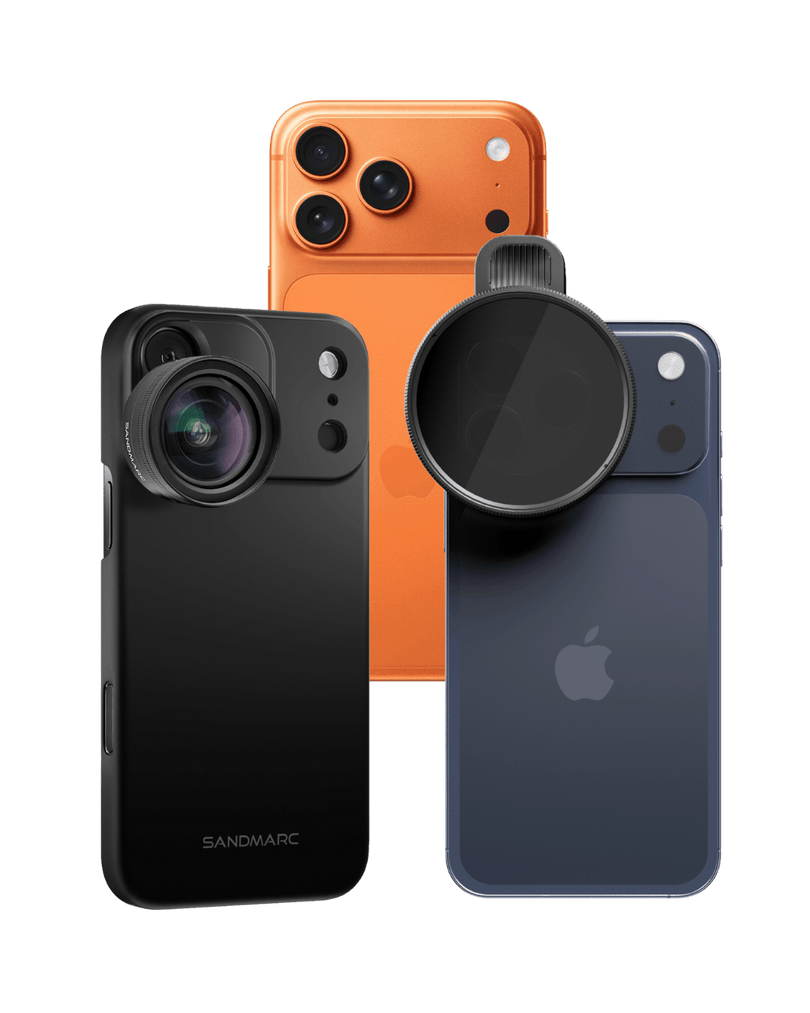
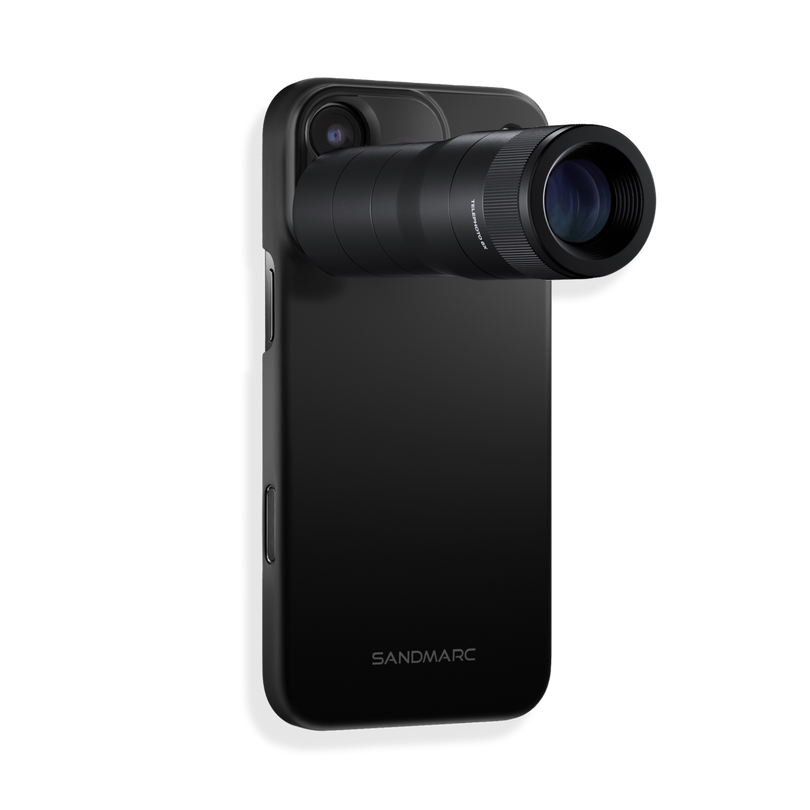
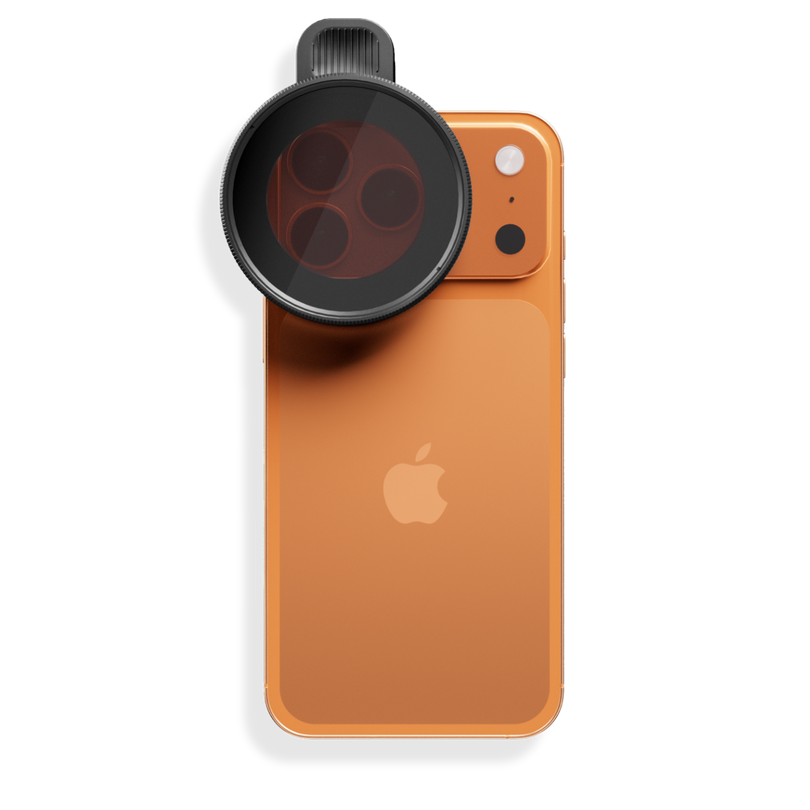
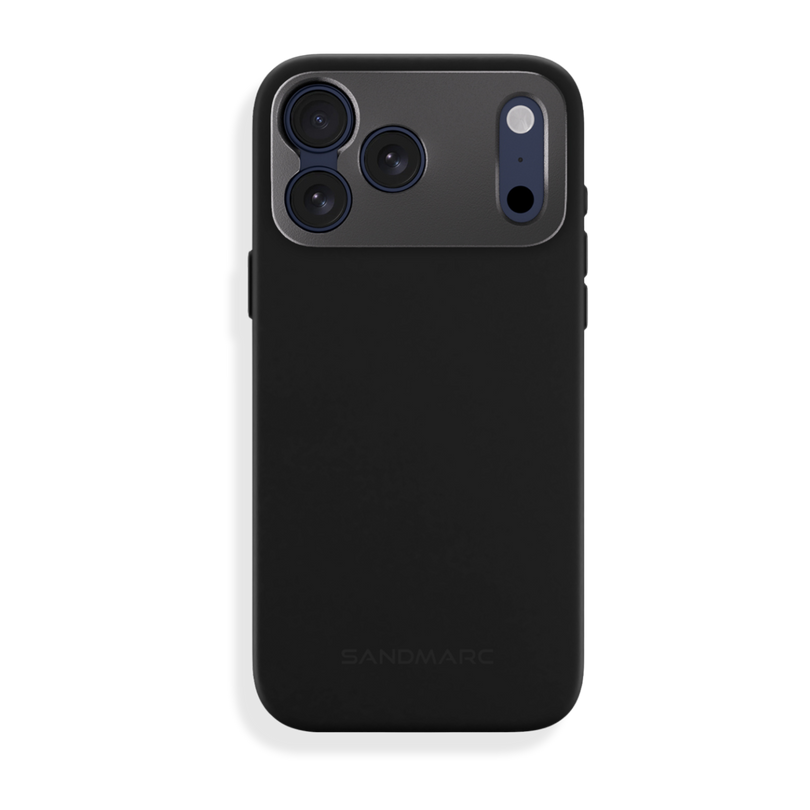
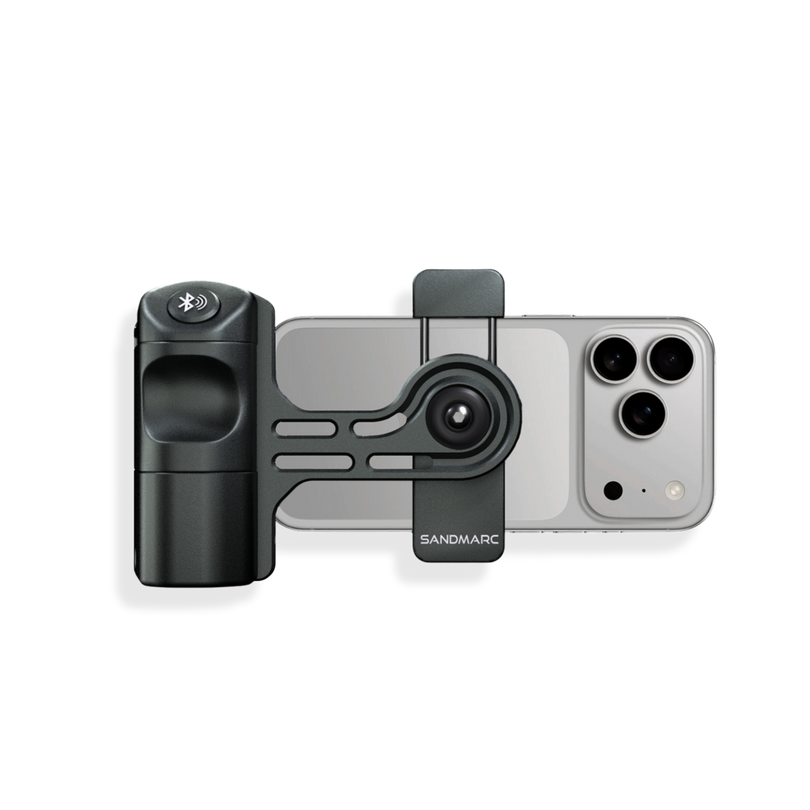
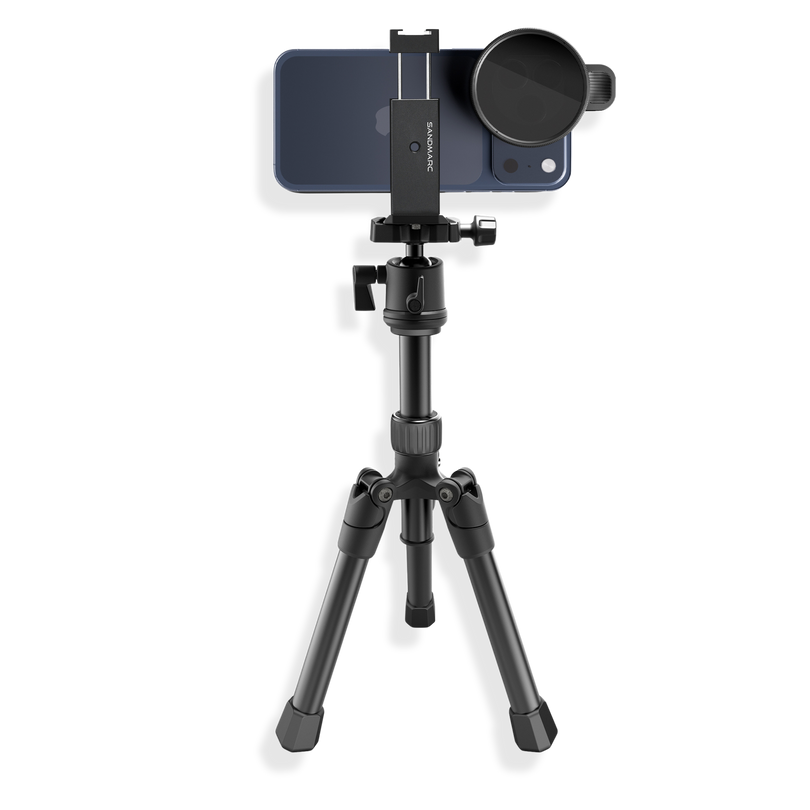
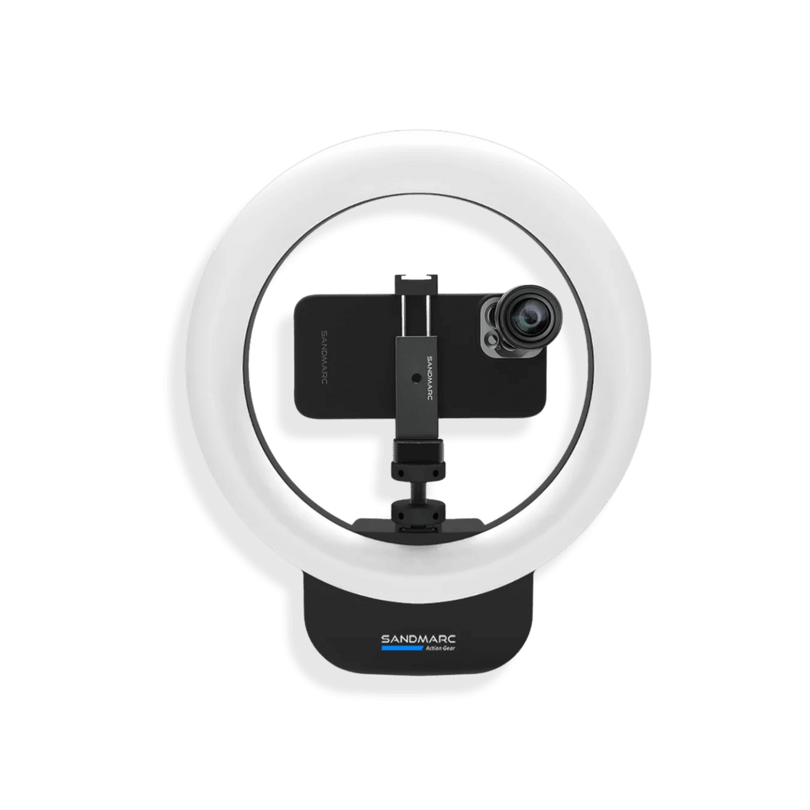
Learning about LUTs, and deciding to get more serious about editing, is an exciting move as a filmmaker. It's a pathway to elevating your videos and growing your craft. Three pieces of gear worth pairing with that next step: the Anamorphic Lens, Film Rig, and Motion Filter. The Anamorphic Lens adds a cinematic, Hollywood look to your videos with an ultra-wide aspect ratio, while the Motion Filter provides a cinematic motion blur. Both pair naturally with the Film Rig to create a more fluid iPhone filmmaking setup.
LUTs are a great way to elevate your iPhone filmmaking and are fundamental to any color grading workflow. ProRes Log on iPhone gave filmmakers a way to really up their game and push what's possible on iPhone. LUTs can seem intimidating at first, but as you continue to practice and edit, you'll understand them in no time. Nothing is permanent when editing, you can always undo, especially if you have duplicates available. The best time to start is today!
Author's Bio
Born on the California coast, SANDMARC designs gear for those who live life in motion—travelers, photographers, and filmmakers. Every SANDMARC product is thoughtfully designed to elevate how you capture, carry, and experience the world. With a focus on quality and functionality, their blog offers tips, guides, and inspiration to enhance the creative journey.

